

To add a free-shipping progress bar in WooCommerce, first configure the shipping offer in WooCommerce, then set up a matching progress reward in your cart drawer. The bar tells shoppers how close they are to qualifying. WooCommerce's shipping rules determine whether they can actually select free shipping.
This guide uses the free StoreFlow DrawerCart for WooCommerce plugin and a simple spending threshold. You do not need DrawerCart Pro for the free-shipping progress feature.
If you are starting from scratch, first set up a free WooCommerce side cart.
Start with one clear shipping offer
Write down the offer before changing any settings. For example:
Free standard shipping on eligible orders of $100 or more within our domestic delivery area.
This is an illustrative offer, not a recommended threshold for every store. Choose an amount that makes sense alongside your product prices and delivery costs.
Decide whether discounts should reduce the amount that counts toward the offer. Also identify which delivery areas qualify. “Spend $100 for free shipping” is incomplete if the customer lives somewhere you do not ship for free.
Start with one zone and one threshold. That gives you a straightforward setup to validate before introducing different regional offers.
1. Configure the actual free-shipping method
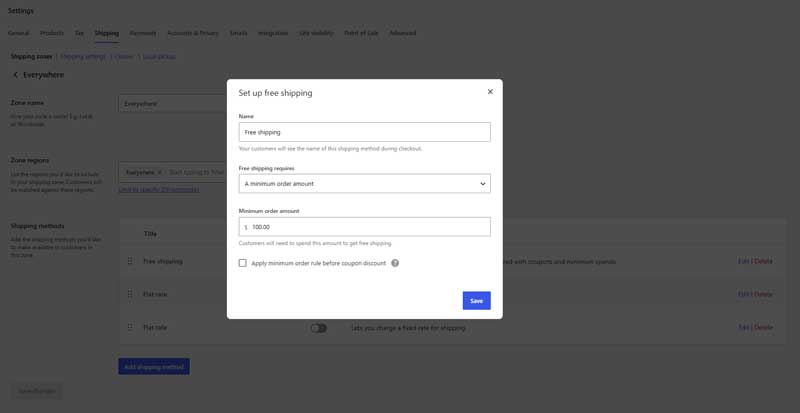
In WordPress:
- Open WooCommerce > Settings > Shipping > Shipping zones.
- Edit the relevant shipping zone.
- Add a Free shipping method, or edit an existing one.
- Set its requirement to A minimum order amount.
- Enter your threshold and save.
Keep an appropriate paid shipping option available for orders that do not qualify. Avoid adding a duplicate method if your existing setup already handles this.
WooCommerce also supports coupon-based requirements and combinations of coupons and minimum spend. For this first setup, use the minimum-spend option. The official WooCommerce free-shipping guide explains the available requirements.
2. Decide how coupons affect the threshold
WooCommerce's Apply minimum order rule before coupon discount checkbox controls this choice. Checked means the threshold uses the amount before coupon discounts; unchecked means discounts reduce the qualifying amount.
Consider this fictional cart:
| Item | Amount |
|---|---|
| Merchandise before discount | $80 |
| Coupon discount | $10 |
| Merchandise after discount | $70 |
| Free-shipping threshold | $75 |
With a before-discount rule, this order clears the threshold. With an after-discount rule, it needs another $5 of qualifying merchandise.
Neither policy is automatically right for every shop. What matters is that your published offer, progress message and checkout agree.
Also test your tax configuration. The number a customer sees as the final payable total is not necessarily the amount used for this shipping calculation. Do not compare the progress bar only with the grand total, which may contain other charges.
3. Add the progress reward in DrawerCart
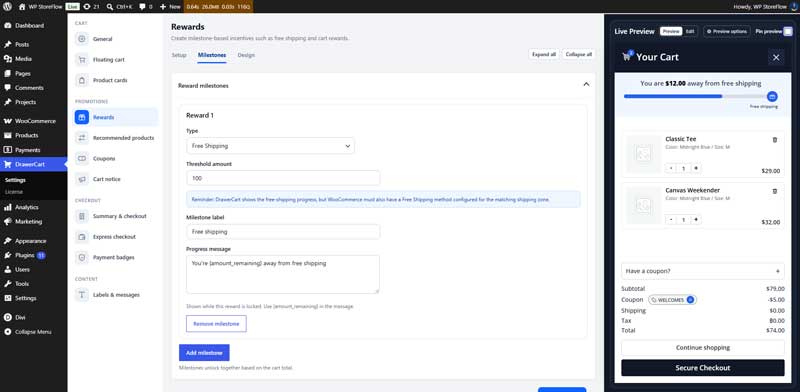
Install and activate StoreFlow DrawerCart for WooCommerce with WooCommerce active.
Open DrawerCart > Rewards > Milestone and set the reward threshold to match the free-shipping minimum you configured. This setup is also demonstrated in the Sundaze tutorial.
Then add a product to your storefront cart and open the drawer. Check the message below the target and again after reaching it.
Use the admin preview to work on appearance, but validate eligibility on the storefront. A preview cannot confirm that a particular delivery address qualifies at checkout.
If your shipping zones use different thresholds, do not assume one manually configured milestone can describe every customer's offer. Check how your installed version handles the destination and unknown addresses. Keep the message qualified to the relevant delivery area until you have verified the full experience.
4. Make the message easy to understand
The most useful message answers a simple question: how much more qualifying merchandise does this customer need?
For the fictional $75 offer, suitable wording might be:
- Below the target: “Add $15 more for free standard shipping.”
- At the target: “Your order qualifies for free standard shipping.”
- Supporting condition: “Available for eligible domestic deliveries.”
Use the current amount remaining, not a permanently typed dollar figure. Keep any location restriction close enough to the offer to be noticed.
The bar should support the cart, not dominate it. Use readable text, visible contrast and enough space around the message. On mobile, customers should still be able to see their products and reach the checkout action comfortably.
5. Test the complete journey
Use a test delivery address in the intended zone and check both the drawer and checkout.
| Test | What to verify |
|---|---|
| Just below the threshold | The remaining amount is correct; free shipping is not promised prematurely. |
| Exactly at the threshold | The reward message and available shipping method agree. |
| Remove an item after qualifying | The message returns to the correct state. |
| Apply and remove a coupon | Progress follows the policy chosen earlier. |
| Change the delivery address | The offer remains accurate for the new destination. |
| Open on mobile | The message is readable and does not obstruct cart controls. |
Repeat the boundary test with the tax display your store actually uses. If you sell virtual and physical products together, include a mixed cart in your checks too.
When the bar and checkout disagree, pause the promotion and inspect the mismatch. Start with the threshold, coupon policy and delivery zone. Changing the message to “unlocked” does not repair a shipping configuration problem.
Common questions
No. Treat the bar as customer communication. Confirm the eligible shipping method at checkout after configuring the underlying offer.
WooCommerce supports free-shipping coupons. If you introduce one, recheck your method's requirements and the progress messaging so shoppers understand whether a code is necessary.
That depends on your delivery options. A customer may still want paid express delivery. Decide which choices should remain visible, then test them rather than assuming “free” must replace every alternative.
Start with the free DrawerCart plugin, configure one clear offer, and verify it at checkout before expanding your rewards.