


Product recommendations inside a WooCommerce cart give shoppers a chance to add something useful before checkout. A good recommendation has a clear connection to the order: a compatible accessory, a complementary item, or a product that helps complete the purchase.
With DrawerCart, in-cart recommendations are a Pro feature. This guide covers how to choose the products, prepare their relationships in WooCommerce where appropriate, and configure a recommendation area that fits the drawer.
For the initial drawer setup, follow the free WooCommerce side cart setup guide.
Decide what kind of recommendation you need
WooCommerce distinguishes between upsells, cross-sells, and related products. An upsell is an alternative to the item being considered. A cross-sell complements an item in the cart. Related products use shared catalog categories or tags. The WooCommerce linked-products guide explains these relationships.
For a cart recommendation, a complementary purchase is often the clearest starting point. Someone buying a notebook may also need a pen. Someone buying a particular camera needs an accessory compatible with that model, not simply any accessory in the catalog.
Start by writing down a small selection of sensible pairings:
| Product in the cart | Illustrative recommendation | Why it belongs |
|---|---|---|
| Notebook | Suitable pen | Completes the writing task |
| Plant pot | Correctly sized saucer | Helps the buyer use the product |
| Compatible device | Matching cable | Solves a specific connection need |
These examples are planning ideas, not automatic matching rules. The product source and filtering options available in your recommendation setup determine what is actually displayed.
What you need
You will need an active WooCommerce store, published products, the free StoreFlow DrawerCart plugin, and the separate DrawerCart Pro add-on for recommendations.
If you still need the basic installation steps, follow our free WooCommerce side cart setup guide first.
Prepare a test cart on a staging site before changing an established store. Include at least one simple product and any product types you intend to recommend. Make sure their images, prices, and product descriptions are ready for customers.
1. Choose a small, relevant product selection
Begin with a few products whose usefulness you can explain in one sentence. If the relationship needs a complicated explanation, the cart may not be the best place to introduce it.
Check compatibility carefully. A recommendation can be relevant at category level and still be wrong for a particular size or model. Do not use a broad accessory suggestion where selecting the wrong item would cause a problem.
Also consider the decision required. A low-complexity addition is easier to evaluate within a compact card. A highly configurable product may need its full product page so the shopper can choose the right options.
2. Prepare WooCommerce cross-sells when your setup uses them
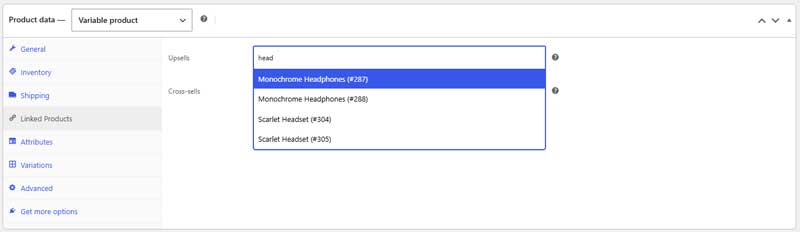
To assign cross-sells in WooCommerce's standard product editor:
- Open Products → All Products and edit the original
product. - Find Product data → Linked Products.
- Select the complementary items in Cross-sells.
- Save the product with Update.
Assigning cross-sells creates product relationships. It does not, by itself, add a recommendation section to every cart interface.
Use those relationships when the recommendation source selected in your drawer supports them. If you use another source available in your installed version, configure the selection there instead. The practical check is whether adding the original product produces the intended suggestions.
3. Configure the recommendation area in DrawerCart Pro
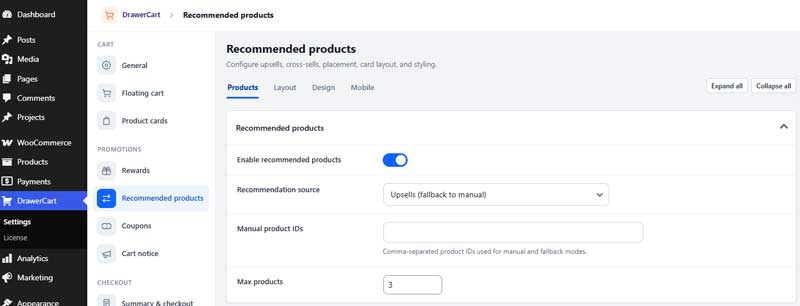
Open DrawerCart's recommendation settings and work through the configuration in this order:
- Enable the recommendation area you want to display.
- Choose the available product source that fits your plan.
- Configure its selection using your prepared products or supported
relationships. - Add a short heading that accurately describes the suggestions.
- Choose the presentation and save the configuration.
Use a heading such as “Useful additions” or “You may also like.” Avoid claiming that products are frequently bought together unless you have the data to support that statement.
Preview the drawer with the actual qualifying product in the cart. A settings preview helps with appearance, but the storefront check tells you whether the recommendation selection fits the shopping scenario.
4. Choose a layout that suits the drawer
DrawerCart Pro advertises list, carousel, and side-column presentations for recommended products. Choose based on the space and the decision your customer needs to make.
| Layout | A useful starting point when… | Check before launch |
|---|---|---|
| List | You have a short selection that should be immediately readable | Product cards do not make the drawer unnecessarily long |
| Carousel | You want to present several suggestions in a compact area | Navigation is discoverable and usable on a phone |
| Side column | You want recommendations visually separated from the order | The layout remains understandable on smaller screens |
Keep the product name, image, price, and available action clear. Recommendation cards should feel consistent with the store, but they should not obscure the products the customer has already chosen.
Compare our WooCommerce side cart design examples to see how recommendations can fit into the overall layout.
You can explore different presentations in the DrawerCart live demos.
5. Check what happens when someone adds a recommendation
Test the complete interaction, not just whether a card appears. Add one of the suggested products and check the selected item, quantity, cart total, and checkout result.
For products with options, check how the customer selects the required variation. Do not assume an add button can complete every product type directly inside the drawer. If the shopper needs another screen, the action should make that clear.
Also test a recommendation that is already in the cart. Decide whether showing it again makes sense for your store, then confirm the installed configuration behaves as intended. Check unavailable items and any stock visibility settings too.
6. Review the result on mobile
Open a realistic cart on a phone. Can you read the recommendation without losing track of the order? Can you distinguish its add button from the main checkout button?
Try a longer product name and multiple items. Check the close control, scrolling, and keyboard focus. If the recommendation area makes the drawer harder to use, reduce the selection or simplify the presentation.
After launch, review whether shoppers interact with the suggestions and complete their purchases. Treat any change in order value or checkout completion as something to measure, rather than an automatic result of adding recommendations.
Frequently asked questions
The current StoreFlow DrawerCart listing identifies recommended products as part of the optional Pro add-on. Review the current Pro offering before choosing your setup.
Check that the recommendation area is enabled and that its selected source uses the relationships you configured. Then check product availability and the cart contents. A saved relationship and a visible drawer section are separate parts of the setup.
Start with a small selection that clearly fits the purchase. Add more only when they provide a useful choice and the drawer remains easy to navigate. A shorter relevant selection is a sensible starting point for your first test.