
WooCommerce drawer cart plugin

Drawer Cart Documentation

Getting started

3
  • 5
    Overview
  • 5
    Installing Drawer Cart Lite
  • 5
    Installing Drawer Cart Pro
  • 5
    Activating License Key

General settings

3
  • 5
    Overview
  • 5
    Presets
  • 5
    Drawer
  • 5
    Header
  • 5
    Empty cart
  • 5
    Menu trigger
  • 5
    Visibility
  • 5
    Advanced

Floating cart

3
  • 5
    Overview
  • 5
    Behavior
  • 5
    Design

Product cards

3
  • 5
    Overview
  • 5
    Content
  • 5
    Layout
  • 5
    Design

Rewards

3
  • 5
    Overview
  • 5
    Setup
  • 5
    Milestones
  • 5
    Design

Recommended products

3
  • 5
    Overview
  • 5
    Products
  • 5
    Layout
  • 5
    Design
  • 5
    Mobile

Coupons

3
  • 5
    Overview
  • 5
    Behavior
  • 5
    Toggle
  • 5
    Coupon form

Cart notice

3
  • 5
    Overview
  • 5
    Content
  • 5
    Layout
  • 5
    Design

Summary & checkout

3
  • 5
    Overview
  • 5
    Summary
  • 5
    Actions
  • 5
    Footer

Express checkout

3
  • 5
    Overview
  • 5
    Express checkout
  • 5
    Layout
  • 5
    Divider

Payment badges

3
  • 5
    Overview
  • 5
    Icons
  • 5
    Layout
  • 5
    Design
  • 5
    Mobile

Labels & messages

3
  • 5
    Labels & messages

Activating License Key

After installing and activating DrawerCart Pro, the final step is to activate your license. An active license allows DrawerCart Pro to receive authenticated updates directly through WordPress.

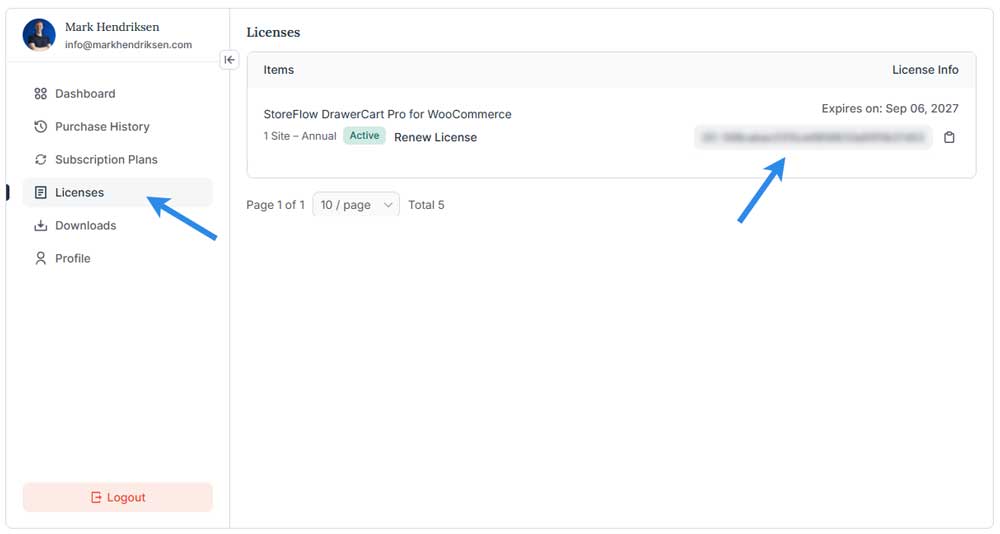
Step 1: Find Your License Key

Log in to your WP StoreFlow account using the account you used to purchase DrawerCart Pro.

Go to your licenses and locate your DrawerCart Pro license key.

Copy the license key so you can use it in your WordPress dashboard.
Step 2: Open the License Page

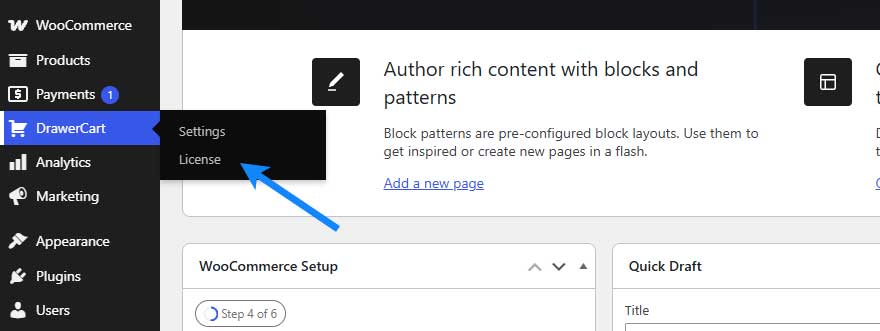
In your WordPress dashboard, go to:

DrawerCart → License

This opens the DrawerCart Pro License page.
Step 3: Enter Your License Key

Enter your DrawerCart Pro license key in the Enter your license key field.
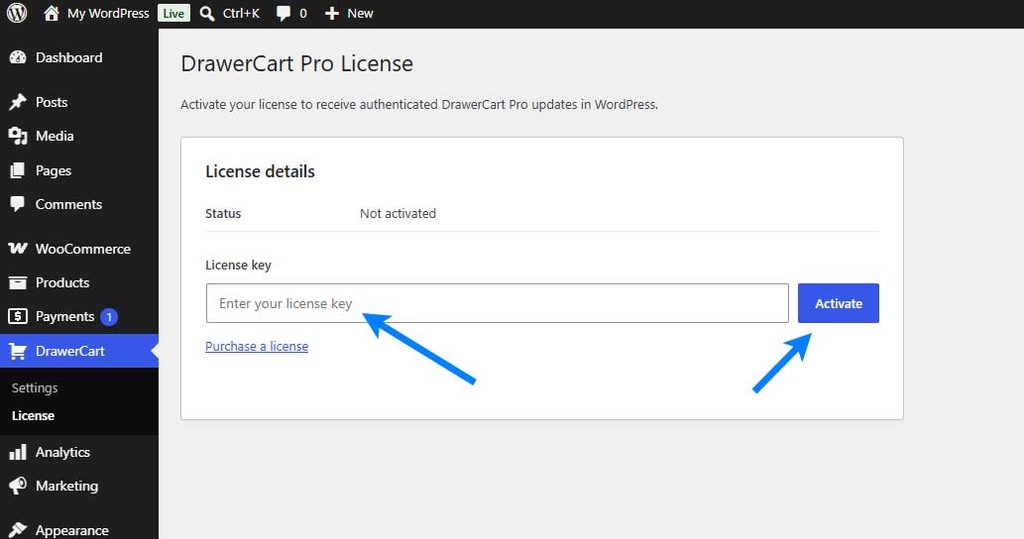
Step 4: Activate Your License

Click Activate.

DrawerCart will verify your license and activate it for the current website.

Step 5: Confirm the License Is Active

After successful activation, the license page will show:
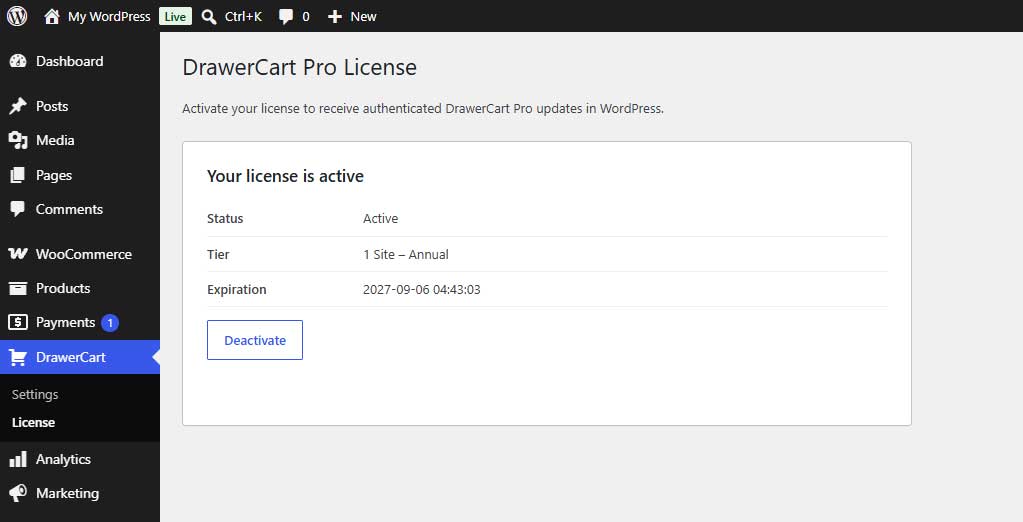
Status: Active

You will also see information about your license, such as the license tier and expiration date.

Your DrawerCart Pro installation is now fully set up and will receive authenticated plugin updates through WordPress.

Deactivating Your License

If you need to move your license to another website, return to:

DrawerCart → License

and click Deactivate.

This removes the license activation from the current website.

Table of Contents