

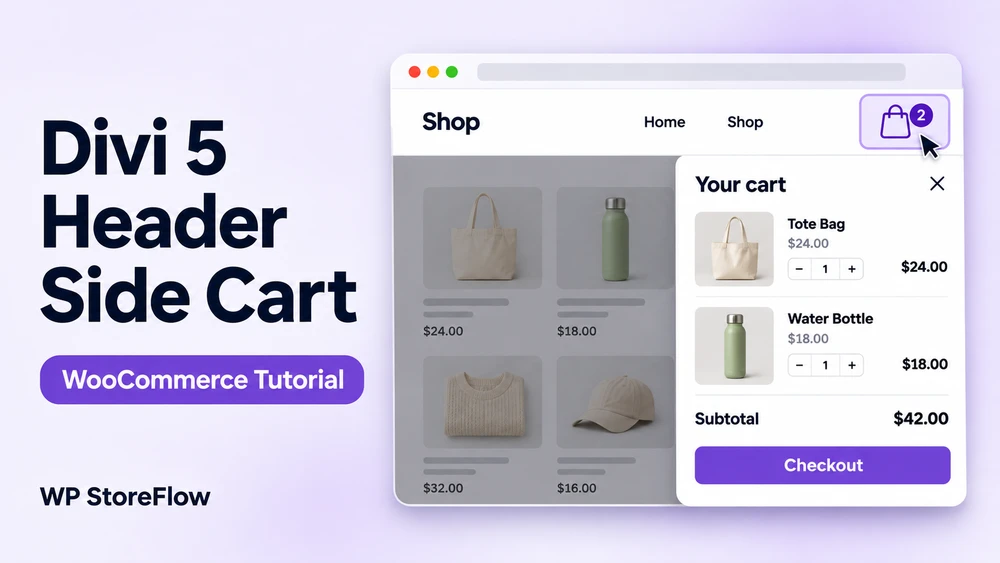
To open a WooCommerce side cart from a Divi 5 header, configure the drawer in DrawerCart, then place DrawerCart Pro's dedicated cart-trigger module in your Theme Builder header. Divi controls where the trigger sits in the header; DrawerCart controls the shopping cart it opens.
The dedicated module is a Pro feature. The free StoreFlow DrawerCart plugin can provide the basic cart, but the module workflow in this guide also requires the Pro add-on.
Prepare the cart before editing the header
You need Divi 5, an active WooCommerce store, the free StoreFlow DrawerCart plugin, and DrawerCart Pro installed and active. Review the current DrawerCart Pro feature details before choosing this route.
If you still need to install the plugin or set up the drawer, start with the free WooCommerce side cart setup guide.
First configure a simple drawer through the DrawerCart settings. Add a product on the storefront and check that you can open the cart, change its quantity, and proceed to checkout. Doing this before editing the header helps separate cart-configuration problems from header-layout problems.
Keep a copy of your existing header layout or use a staging site before changing it.
1. Open the correct Theme Builder header
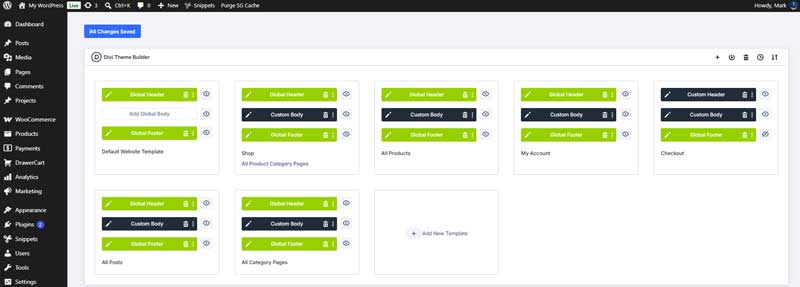
Go to Divi → Theme Builder in your WordPress dashboard.
If your site already has a global header, edit it. If you are starting from scratch, find the Default Website Template, select Add Global Header, then choose Build Global Header. This opens the header layout in the Visual Builder.
Check any additional template assignments before editing. A shop or product template may use its own header, so changing the default global header does not necessarily change every view. The official Divi 5 header guide explains global headers and template-specific exceptions.
For a store with one shared header, keep the cart trigger in that shared layout. If your shop deliberately uses a different header, add and check the trigger there as well.
2. Add the DrawerCart trigger to the layout
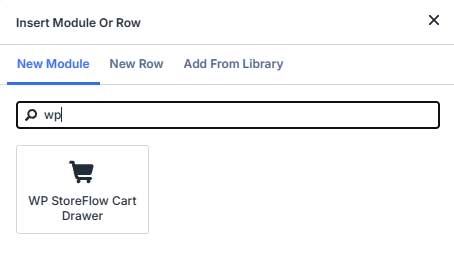
In the header layout, use Divi's module insertion control and select the cart-trigger module supplied by DrawerCart Pro. Place it in the part of the layout where you want customers to open their basket.
A practical starting arrangement is:
| Header area | Content |
|---|---|
| Left | Store logo |
| Middle | Main navigation |
| Right | Cart trigger |
Adapt this arrangement to your existing header, especially if it includes a search control.
Keep the trigger visually separate from adjacent links. A cart control squeezed against the last menu item can be easy to miss or difficult to tap.
The module provides the entry point to the cart. Configure the drawer's content and overall appearance in DrawerCart rather than trying to construct a second cart inside the header.
3. Match the trigger to your header
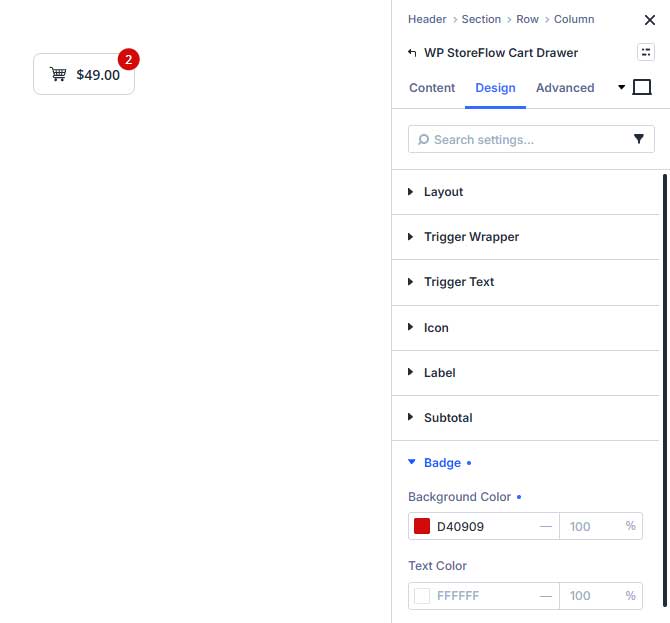
Use the module's available styling options and the surrounding Divi layout controls to make the cart control fit the header.
Work through this short design checklist:
- Make the control recognizable as a cart, with enough contrast against the header background.
- Align it with the navigation without forcing it into a very narrow space.
- Leave room for the control to change size if its displayed cart information changes.
- Keep any visible quantity indicator readable and clear of nearby text.
- Check hover and keyboard-focus presentation as well as the resting appearance.
Avoid choosing dimensions from a screenshot alone. The right spacing depends on your logo, menu length and the amount of information shown by the cart control.
If the header already contains another cart element, decide which should remain. Two similar controls that open different cart interfaces can be confusing. Remove a redundant element only after confirming the DrawerCart trigger works on the storefront.
4. Give mobile its own layout check
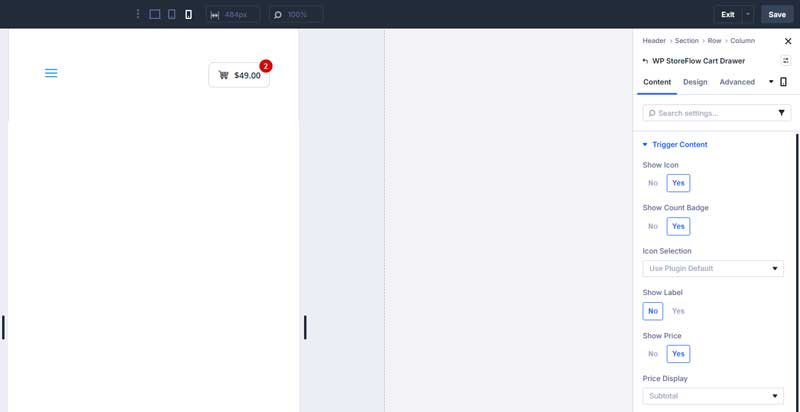
Use Divi's responsive editing views to inspect the header at smaller widths, then verify it on a real phone.
Keep the cart accessible beside the mobile menu if the layout allows. Leave enough space for the logo and menu button.
Check the narrowest layout your design supports. Long logos, enlarged text and quantity indicators can reveal problems that are easy to overlook in a wide desktop preview.
For layout ideas to evaluate on smaller screens, explore our WooCommerce side cart design examples.
If you use a sticky header, scroll the page and open the drawer again. Confirm the drawer, overlay and close control remain usable. Also check that an open mobile navigation panel does not leave the shopping interface difficult to operate.
5. Save and check the storefront
Save the header in the Visual Builder, exit to the Theme Builder, and click Save Changes there as well.
Open the storefront outside the builder and check these views:
- The shop page with an empty cart.
- A product page after adding an item.
- The cart after changing quantities or removing a product.
- A normal content page that uses the same header.
- Any shop or product template with a separate header assignment.
Use the header trigger to open the drawer in each relevant state. If you display a quantity indicator, compare it with the actual cart after every change. Then follow the checkout action and verify that the expected cart contents carry through.
Finally, navigate to the trigger with the keyboard and check that it can be operated and that the drawer can be closed. These checks matter even when the visual layout looks correct.
Can you add a header cart without the Pro module?
Yes, a menu-trigger approach is another option. The Sundaze setup tutorial demonstrates it with the free plugin: copy the Menu Trigger ID from DrawerCart → General → Menu Trigger, then use it as the URL of a Custom Link under Appearance → Menus. Add that item to the menu your header displays and save the menu.
This places the trigger through your menu. Choose the dedicated Pro module when you want to position the trigger as its own element in the Divi header layout. Check the current plugin interface when following either method.
Common questions
Start by checking which Theme Builder template applies to each page. A custom header can explain why a change to the global header is absent elsewhere. Also inspect responsive visibility settings in the affected layout.
Choose based on the browsing experience you want. A header trigger may be sufficient, while a floating control can offer another convenient entry point. Check both together on mobile before deciding.
Explore the DrawerCart demos to choose a cart design, then review DrawerCart Pro if you want the dedicated Divi 5 module for your header.